Updated 6 November 2026 · AUD prices checked against providers
This review contains affiliate links — if you buy through them, Proxiyum may earn a commission at no extra cost to you. Details: Affiliate Disclosure
Best Planners Organisation Tools Students: Finding the best planner for students is less about features and more about friction: the right tool is the one you will actually open every day. A brilliant system you abandon by week three is worse than a simple list you maintain all semester. With dozens of apps competing for your attention — and paper planners refusing to die — choosing can feel harder than the studying itself. This guide compares the strongest options for 2026: the apps worth your time, what they really cost, and how to match the tool to your brain.
All prices are in US dollars (most productivity apps bill in USD) and were current at the time of writing. The golden rule before we start: pick one system for tasks and one for calendar. Students drowning in five apps are not organised — they are procrastinating with extra steps.
What We Like
- Todoist's free plan is genuinely usable — for most students, free is the right tier
- TickTick bundles a calendar, habit tracking and a Pomodoro timer for US$35.99/year
- Notion's Education Plan is free for students, with Plus-level features
What to Consider
- Todoist retired its education discount in 2021 — students pay the same as everyone else
- Google Tasks has no priorities, no labels and no meaningful project organisation
- Notion's blank workspace invites hours of system-building procrastination
What Makes a Great Student Planner
Student life has specific planning demands that generic productivity advice misses. Your planner needs to handle: hard deadlines (assignments, exams — non-negotiable dates), recurring routines (weekly readings, regular shifts), big scary projects (a 3,000-word essay needs breaking into steps), and capture (ideas and tasks arriving at random moments must land somewhere instantly, or they are lost). The best planner for students handles all four without making you work for it.
There is also the paper-versus-digital question, and the honest answer is that both win different categories. Paper is unbeatable for thinking — weekly reviews, brainstorming, the satisfaction of crossing things off — and it never pings you with notifications. Digital wins for remembering: recurring tasks, deadline alerts, syncing across phone and laptop, and searching. Many successful students use both: paper for the weekly plan, digital for capture and reminders. There is no prize for purity; there is only the system that survives contact with your actual life.
Todoist: The Task Manager That Stays Out of Your Way
Todoist is the most popular dedicated task manager in the world for a reason: it makes capturing and organising tasks nearly effortless. Type “Submit history essay every Friday” and it creates a recurring task with the right schedule — the natural-language input is genuinely the fastest in the business. Projects organise tasks by subject, labels add context (@home, @campus, @15min), and priority flags surface what matters today.
Pricing in 2026
Todoist’s free Beginner plan is genuinely usable: up to 5 active projects, task priorities, subtasks and basic filters, with no time limit. For most students, 5 projects (one per subject, plus personal) is enough — which makes Todoist one of the rare apps where free is the right tier. Pro costs US$7 per month billed monthly, or US$5 per month billed annually (US$60/year), adding reminders, calendar view, 300 projects and AI features. One thing to know: Todoist retired its education discount program in 2021 and has not brought it back, so students pay the same as everyone else (see this Todoist pricing comparison for the current breakdown).
Who it suits
Students who think in tasks and want the lowest-friction capture system available. If your main problem is “I forget things”, Todoist is probably your answer. It is less suited to students who want their notes, calendar and tasks in one place — that is Notion’s territory.
TickTick: The Underdog With More Built In
TickTick does nearly everything Todoist does, plus things Todoist charges extra for: a built-in calendar view, habit tracking and a Pomodoro timer are all included. For students, the habit tracker is the standout — building a daily reading or flashcard habit inside the same app as your task list removes an entire app from your life.
Pricing is TickTick’s other advantage: Premium costs US$35.99 per year, noticeably less than Todoist Pro’s US$60. The free tier is generous enough for many students. The trade-off is a slightly less polished experience and fewer third-party integrations — if you live inside Google’s ecosystem, Todoist’s integrations are smoother. But for a student wanting tasks, calendar, habits and a focus timer in one affordable app, TickTick is arguably the best value in this entire guide.
Google Calendar + Google Tasks: The Free Ecosystem Play
If your university runs on Google Workspace (many Australian universities do), the path of least resistance is Google’s own tools — and they cost nothing. Google Calendar handles time-blocking beautifully: study sessions, classes, shifts and deadlines all visible in one week view, with alerts that actually fire. Google Tasks is deliberately simple — lists with due dates, integrated into Gmail and Calendar — which is either its charm or its limitation depending on your needs.
The real power move is combining them: tasks with due dates appear on your calendar, so “essay due Friday” is both a task and a visible calendar event. For students whose main need is scheduling rather than complex task management, this free combination beats paid apps. Its ceiling is real, though — no priorities, no labels, no meaningful project organisation. When your system outgrows it, you will feel it; until then, free and integrated is hard to argue with.
Notion: The Everything Workspace
Notion is not really a planner — it is a workspace that contains a planner, alongside your notes, assignment tracker, reading lists and semester dashboard. For students who want one app for their entire academic life, nothing else competes: a single database can hold every assignment with its due date, status, subject and grade, displayed as a calendar, a kanban board or a simple list.
The student economics are unbeatable: the Education Plan is free for students at accredited institutions (sign up with your university email), providing Plus-level features. The catch, as ever with Notion, is the setup cost — a blank workspace invites hours of system-building procrastination. Our advice from the note-taking apps comparison applies doubly here: start from a finished student template, not a blank page, and freeze your system for the semester. Notion suits systems-thinkers who enjoy building; it punishes tinkerers who cannot stop rebuilding.
Apple Reminders + Calendar: The Quiet Default
iPhone and Mac users often overlook what is already installed. Apple Reminders has grown into a genuinely capable task manager — natural-language input, location-based reminders (“remind me when I get to campus”), smart lists and shared lists for group projects — and it syncs flawlessly across Apple devices for free. Paired with Apple Calendar, it covers the core student needs with zero cost and zero setup.
The limitation is the ecosystem wall: Windows and Android users need not apply. But if you are all-in on Apple, try the built-in tools seriously for two weeks before paying for anything. Many students discover the “best planner” was pre-installed all along.
Ready to compare?
Compare current prices & course optionsPaper Planners: Still Undefeated for Thinking
Digital tools win at remembering; paper wins at thinking. Writing your week by hand forces the prioritisation decisions that apps let you dodge — a screen can hold infinite tasks, but a paper page forces you to choose what actually fits. Students who do a weekly paper review consistently report better clarity about their priorities, and the physical act of crossing off completed tasks delivers a small dopamine hit no checkbox quite matches.
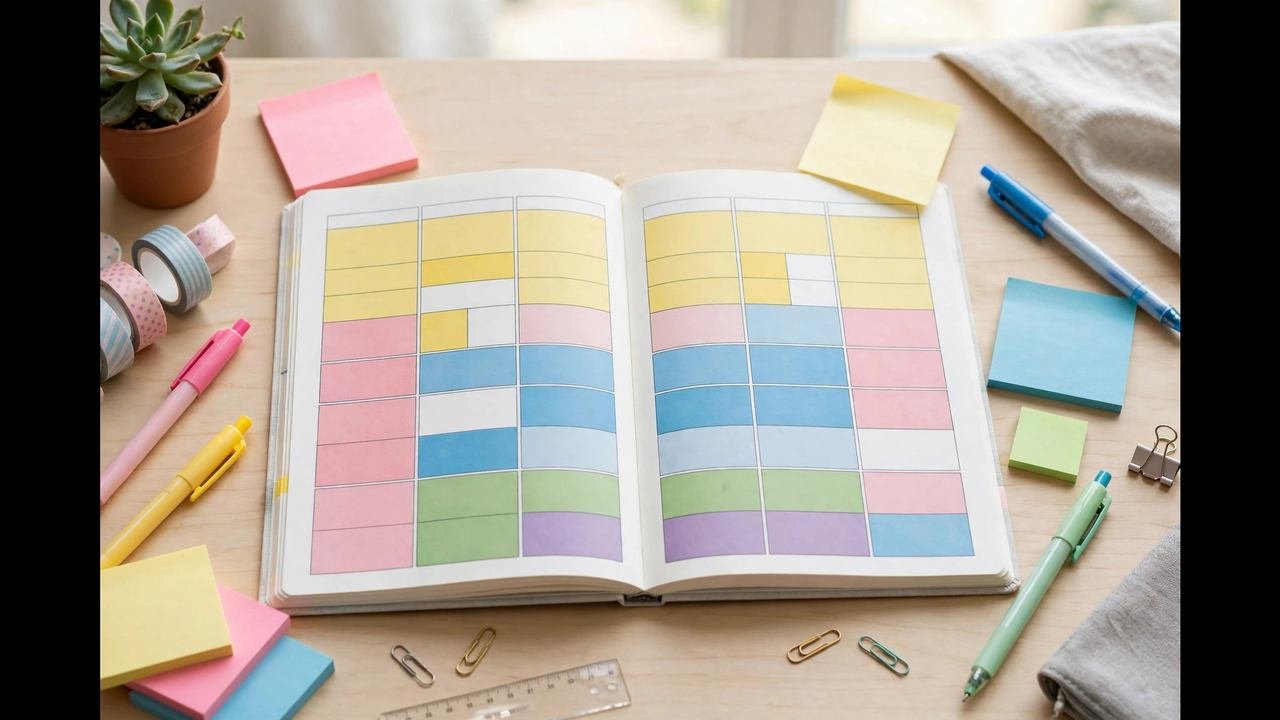
You do not need an expensive system. A simple week-to-view diary from Officeworks or Kmart, a notebook with a hand-drawn weekly spread, or even a printable template works. The method matters more than the product: each Sunday, write the week’s fixed commitments, then assign your flexible tasks to specific days. During the week, capture digitally (phone notes app) and transfer to paper in a two-minute evening ritual. Paper for planning, digital for capture and alerts — the hybrid system that quietly outperforms both purist approaches.
The Weekly Review: The Habit That Makes Any Planner Work
Here is the uncomfortable secret of the productivity world: the tool matters far less than the review. A weekly review — 20–30 minutes every Sunday — is what transforms a planner from a graveyard of good intentions into a functioning system. Without it, tasks silently rot, deadlines ambush you, and the planner becomes something you avoid opening. With it, even the simplest paper list outperforms the fanciest app.
The review has four steps. Clear the decks: process everything you captured during the week — notes app jottings, photos of whiteboards, starred emails — into actual tasks or delete them. An unprocessed capture inbox is just anxiety in list form. Review the week: what got done, what slipped, and why? Look for patterns, not guilt: if “read journal articles” slipped three weeks running, the problem is the plan (wrong time slot? task too big?), not your character. Plan the week ahead: place fixed commitments first, then assign flexible tasks to specific days, then identify your three most important outcomes for the week. Three — not fifteen. Check the horizon: scan the next two to four weeks for deadlines, exams and busy periods so nothing surprises you. Students who do this review rarely experience the “oh no, that’s due tomorrow?” panic, because the horizon check catches everything while there is still time to act.
Avoiding Planner Procrastination
A final warning about a trap this very guide could lead you into: organising about studying instead of studying. Planner procrastination has recognisable symptoms — redesigning your Notion workspace for the fourth time, watching YouTube reviews of task apps instead of using one, colour-coding a system with no tasks in it. The rule that prevents it: your system is frozen during the semester. Pick your tools in week one, set them up once, and then any urge to reorganise gets written down and deferred to the semester break. A planner is a means to an end, and the end is learning. If maintaining your system takes more than 30 minutes a week including the review, the system is too complex — simplify until it fits. The students with the prettiest setups are rarely the students with the best grades; the students with the most boring, stable setups usually are.
How to Choose: Match the Tool to Your Problem
- “I forget things constantly” → Todoist (free) or TickTick. Lowest-friction capture wins.
- “I can’t see my week” → Google Calendar time-blocking, possibly with TickTick’s built-in calendar.
- “My notes, tasks and deadlines are scattered” → Notion (free Education Plan), with a student template.
- “I need to build better study habits” → TickTick Premium — habits plus tasks plus timer in one app.
- “Apps overwhelm me” → Paper planner for weekly planning plus phone reminders for deadlines. Simpler is better.
- “I’m already in the Apple ecosystem” → Apple Reminders + Calendar before spending a cent.
Whichever you choose, commit for a full semester before judging it. Every system feels clumsy in week one — that is the learning curve, not a verdict. And remember that the planner serves the larger system: pair it with realistic time management for your study blocks, and review it every Sunday. The best planner for students is not the one with the most features. It is the one that is open on your desk, up to date, on an ordinary tired Tuesday — because that is when organisation actually matters.
Quick-Start: Your First 30 Minutes With a New Planner
Do not spend a week “setting up”. Here is a 30-minute start that works with any tool from this guide. Minutes 0–10: brain-dump every task, deadline and commitment currently in your head into the inbox or capture list — get it all out, unfiltered. Minutes 10–20: add every known deadline for the semester from your unit outlines: assignments, exams, census dates. Set each with a reminder two weeks before, not the day before. Minutes 20–30: block your fixed weekly commitments (classes, shifts, sleep) into the calendar, then place three study blocks for the coming week. Done. You now have a functioning system; everything else — labels, templates, integrations — is optional polish for later. The students who succeed with planners are not the ones with the most elaborate setups; they are the ones who did this 30-minute start and then showed up for the weekly review — every week, all semester. Your future self, calmly on top of every deadline, will thank present you for those thirty minutes.
Whichever tool you choose, commit to a two-week trial before judging it: every planner feels awkward on day one, and the best system is the one you will still be opening in week three.
Before you enrol, run the numbers.
Work out the true cost per hour → Course Cost Calculator