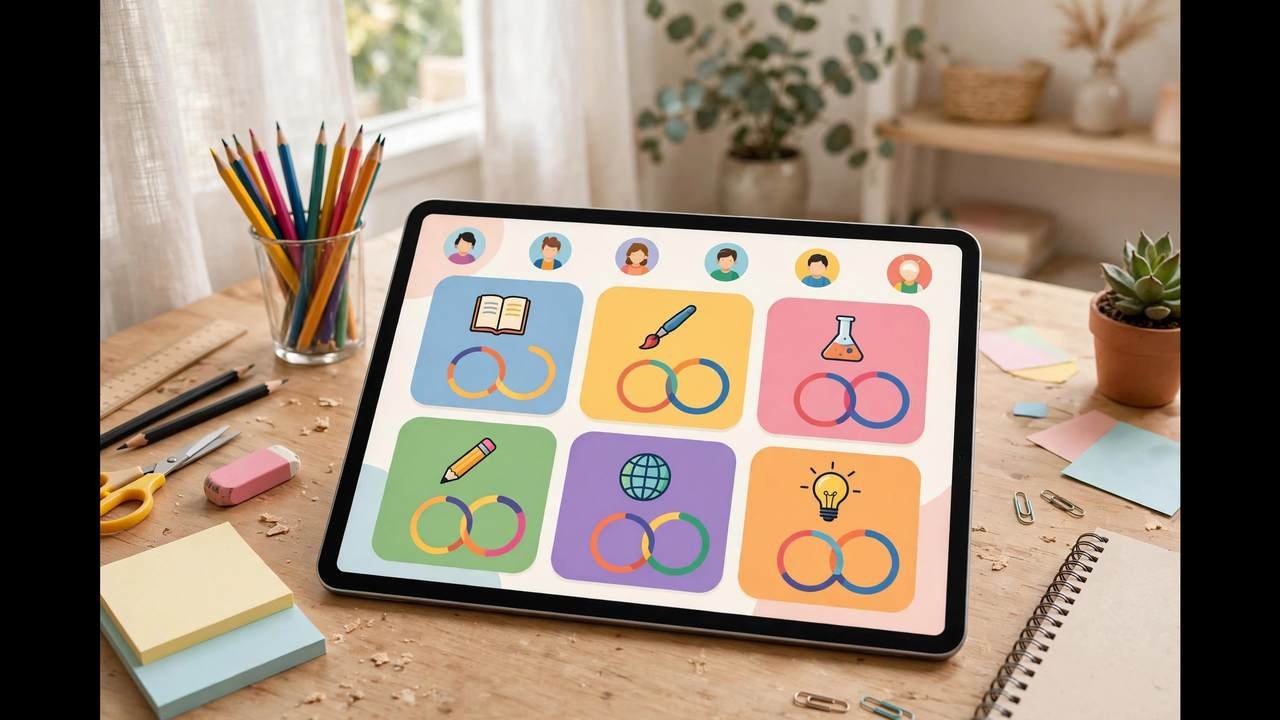
This Google Classroom guide is for Australian students and parents who need to get up to speed quickly. Google Classroom is the learning platform behind a huge number of primary and secondary school classes across Australia — your teacher posts assignments there, you submit your work there, and your grades come back through it. If your school uses Google Workspace for Education (and most do), Classroom is the hub that ties everything together. Below you will learn how to join classes, find and submit assignments, check your grades, use it on a phone, and — for parents — how to keep an eye on it all without hovering.
What Is Google Classroom, Exactly?
Google Classroom is a free learning management system made by Google for schools. Think of it as a digital classroom noticeboard combined with an assignment inbox. Teachers create a “class” for each subject, post announcements and work, and students submit everything electronically — no more lost worksheets or “the dog ate my homework” excuses.
For Australian schools, Classroom sits inside Google Workspace for Education, which also includes Gmail, Google Drive, Docs, Slides and Meet. That integration is the whole point: an assignment might ask you to open a Google Doc template, complete it, and submit it — all without leaving Classroom. Schools get the Fundamentals edition free, which is why adoption is so widespread from Sydney to Perth to regional towns.
One important note for parents: children under 18 generally use a school-managed Google account (usually something like firstname.lastname@school.vic.edu.au), not a personal Gmail. The school controls what these accounts can do, which apps they can access, and how long data is kept — a useful privacy safeguard we will come back to.
Google Classroom Guide: Joining Your Class
There are three ways to get into a class, and your teacher will tell you which one to use:
- Class code: Your teacher gives you a short code (a mix of letters and numbers). Go to classroom.google.com, click the plus sign in the top-right corner, choose “Join class”, and enter the code. This is the most common method in Australian schools.
- Email invitation: The teacher invites you directly. You will get an email — open it and click “Join”. Check your school email inbox, not your personal one.
- Automatic enrolment: Some schools add students to classes automatically through their admin system. If your classes just appear when you log in, this is what happened — nothing to do.
To sign in, go to classroom.google.com and use your school Google account. If you are already signed into a personal Gmail in the same browser, Classroom can get confused about which account to use. The fix is simple: click your profile picture in the top-right and switch to your school account, or use a separate Chrome profile for schoolwork. This one tip prevents half of all student login headaches.
Parents: if your child says “it won’t let me join”, the cause is almost always the wrong Google account being signed in. Ask them to check which account shows in the top-right corner before assuming something is broken.
Navigating Google Classroom: Stream, Classwork and People
Open any class and you will see three tabs at the top. Understanding what lives in each one saves a lot of confused scrolling:
- Stream: The noticeboard. Teachers post announcements, reminders and questions here, and students can comment (if the teacher allows it). Check the Stream regularly — this is where “excursion permission slips due Friday” type messages land.
- Classwork: The important one. Every assignment, quiz, question and piece of learning material lives here, organised by topic (your teacher might group them as “Term 2”, “Week 5” or by subject unit). When you cannot find an assignment, it is in Classwork — never in the Stream.
- People: Lists the teacher(s) and your classmates. Mostly useful for checking who is in the class or finding a teacher’s email.
On the left sidebar you will also see “To-do”, which pulls together every upcoming and missing assignment across all your classes into one list. If you only check one thing each evening, make it the To-do list — it is the fastest way to catch something you forgot.
Submitting Assignments: Turn In vs Mark as Done
This is the part of this Google Classroom guide that matters most, because submitting wrong is the classic student mistake. In Classwork, click an assignment to open it. You will see the instructions, the due date, and any attached files. There are two different buttons depending on the assignment type:
- “Turn in”: Used when the assignment has work attached — a Google Doc you completed, a photo of handwritten work, a video file, or a link. Click “Add or create” to attach your file (you can upload from your computer, Google Drive, or create a new Doc/Slide right there), then click “Turn in” and confirm. Until you click Turn in, the teacher cannot see your work — even if you finished the document days ago.
- “Mark as done”: Used for assignments with nothing to attach — like “read chapter 4” or “watch this video”. It simply tells the teacher you completed it.
After submitting, the status changes to “Turned in”. If the teacher returns it with feedback, you can revise and resubmit. And here is a feature many students miss: you can unsubmit your work any time before the due date if you spot a mistake — open the assignment, click “Unsubmit”, fix your file, and turn it in again. After the due date, unsubmitting may be locked, so check your work before the deadline.
Practical tips that prevent tears:
- When a teacher attaches a Doc template, always use “Make a copy” (or the copy the teacher auto-creates for you) — never type directly into the teacher’s original.
- For photos of handwritten work, take them in good light and check they are readable before attaching. Blurry photos are the number one reason teachers return work.
- Do not leave submitting to the last minute. Classroom occasionally has outages, and “the website was down” is not accepted when the outage was five minutes.
Checking Grades and Teacher Feedback
When your teacher marks your work, the grade appears on the assignment itself and in your overall class summary. Open the assignment and look for the score and any private comments — teachers often leave detailed feedback in the “Private comments” section, which only you and the teacher can see. This is where the real learning happens, so read it rather than just glancing at the number.
To see everything at once, open the class and click “View your work” (or check the Grades area if your teacher has enabled it). This shows every assignment with its status: assigned, turned in, graded, or missing. A “Missing” flag is your early warning system — chase it up before it becomes a zero.
Parents: you cannot see grades unless your child shows you or the school uses Guardian summaries (see below). Classroom is deliberately student-facing; grades officially come through the school’s reporting system each term.
Using Google Classroom on Phone and Tablet
The free Google Classroom app (iOS and Android) covers nearly everything the website does: joining classes, viewing assignments, attaching photos, and submitting work. It is genuinely handy for photographing handwritten homework and submitting it on the spot.
A few mobile quirks to know: the app sometimes struggles with large file uploads on slow connections, so big videos are better submitted from a computer. Push notifications for new assignments are useful — turn them on in the app settings — but mute them overnight or your phone will buzz at midnight when a teacher schedules posts for the morning. And if the app ever shows a blank screen, force-closing and reopening it fixes the problem nine times out of ten.
Google Classroom Guide for Parents: Guardian Summaries
Parents, this section is for you. Google Classroom offers guardian email summaries — a regular email showing your child’s upcoming work, missing assignments and recent announcements across all their classes. You do not need a Google account to receive them; the teacher or school sends an invitation to whatever email address you provide.
To get set up, contact your child’s teacher or the school office and ask to be added as a guardian. You can choose daily or weekly summaries. Daily is better during term time if your child is prone to forgetting deadlines; weekly is calmer if they are on top of things.
A few honest notes on the parent side:
- Guardian summaries show what is due and missing, not grades and not the actual work. They are a prompt for conversation, not surveillance.
- You cannot post, comment or submit anything as a guardian — the account is read-only by design.
- The best use of the summary is a quick Sunday-evening check-in: “I see you have a science report due Thursday — how’s it going?” That beats discovering a missing assignment at report time.
- Resist the urge to email the teacher about every missing item. Teach your child to check their own To-do list first; the guardian summary is your safety net, not their alarm clock.
Working With Google Docs, Drive and Meet Inside Classroom
Classroom’s power comes from its integration with the rest of Google Workspace. A typical assignment flow looks like this: the teacher attaches a Google Doc template to the assignment, Classroom automatically makes a personal copy for each student, you complete it in Docs (which autosaves to Drive), and you turn it in from Classroom. Your work never leaves the Google ecosystem, which means no “I lost the file” disasters.
Google Meet is often linked for video lessons — your teacher may post a Meet link at the top of the Stream for live classes. The same etiquette applies as any video lesson: join on time, stay muted when not speaking, and use the chat for questions. If your school uses Docs and Meet heavily, our comparison of Google Docs vs Microsoft 365 for students will help you decide which ecosystem suits your study habits.
Common Problems and Quick Fixes
- “You don’t have permission” or can’t join: You are signed in with the wrong Google account. Switch to your school account.
- Class code doesn’t work: Codes expire or get reset. Ask the teacher for the current code — do not keep retrying an old one.
- Can’t see an assignment everyone else can: Refresh the page, check the Classwork tab (not Stream), and make sure you are in the right class — students with many classes open the wrong one more often than they admit.
- Turned in but teacher says it’s empty: You probably clicked “Mark as done” without attaching the file, or attached it but never clicked “Turn in”. Open the assignment and check the status.
- Attachment won’t upload: Check your internet connection and file size. Huge videos may need compressing or uploading to Drive first, then attaching as a Drive link.
- Everything is slow: Clear your browser cache, disable unnecessary extensions (a bloated browser slows Classroom noticeably — see our essential browser extensions for online learners for which ones are worth keeping), or try an incognito window.
What Happens to Classes at the End of Term
At the end of each term or school year, teachers archive their classes. Archived classes disappear from your main Classroom homepage but are not deleted — you can still find them under the menu (the three lines in the top-left) in “Archived classes”. This matters because your submitted work and teacher feedback stay accessible there, which is handy when you want to revise old topics or check how you approached a similar assignment last term. If you need something from an archived class and cannot find it, ask the teacher — they can still see everything.
Privacy and Safety Notes
School Google accounts come with meaningful protections: schools control the settings, advertising is off in Workspace for Education, and the school — not Google — owns the student data. Still, teach your child the basics: do not share their password, do not post personal details in Stream comments, and remember that teachers can see everything posted in the class. Deleted comments are often still visible to teachers, so the old rule applies — do not write anything you would not say out loud in class.