Updated 24 October 2026 · AUD prices checked against providers
This review contains affiliate links — if you buy through them, Proxiyum may earn a commission at no extra cost to you. Details: Affiliate Disclosure
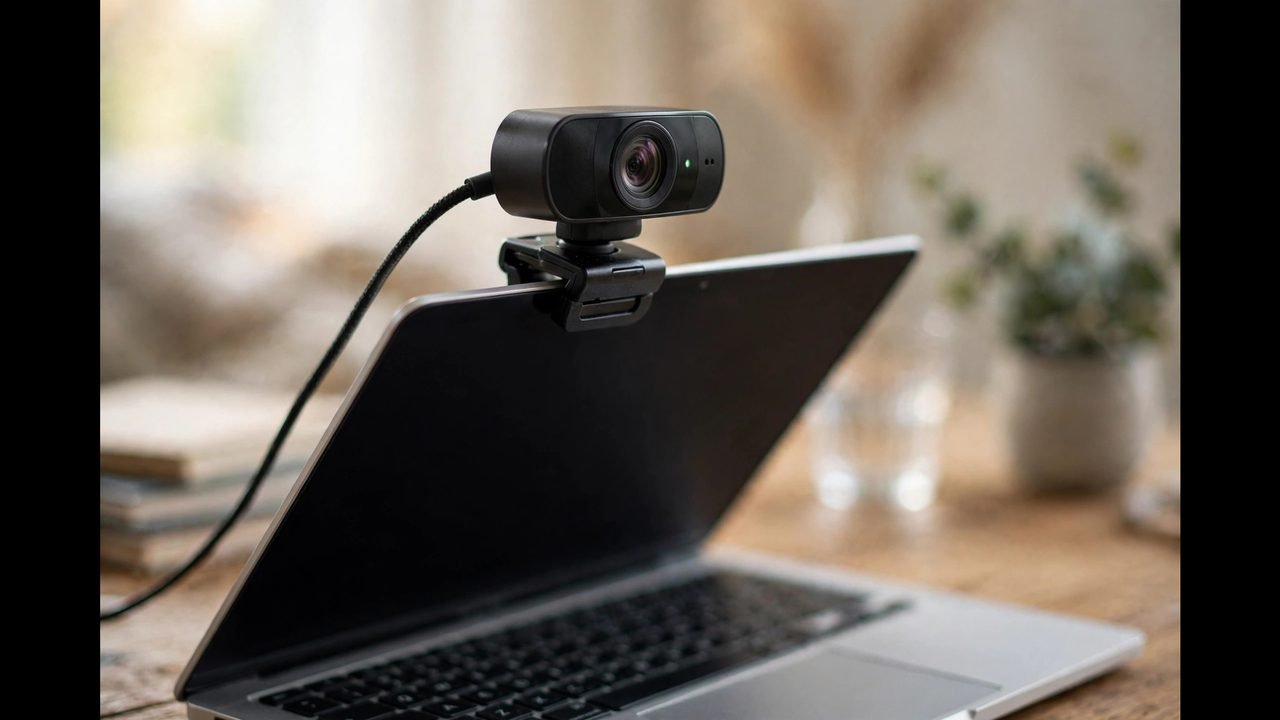
Finding the best webcam online learning Australia has to offer is one of the highest-value upgrades a student can make. Your laptop’s built-in camera was designed to be cheap and thin, not good — grainy in typical bedroom lighting, unflattering at the wide angle it uses, and often positioned to stare up your nose. Teachers notice the difference, and in tutorials, presentations and oral assessments, looking clear and professional genuinely affects how you come across. This guide explains which specs actually matter for classes, the best webcams you can buy in Australia in 2026 across budgets, and the traps to avoid.
What We Like
- Low-light performance and lens quality matter more than the megapixel number
- The C920/C920s works plug-and-play on Windows and Mac with no software required
- Your phone is a free trial of better video — Continuity Camera, Camo, DroidCam or EpocCam
What to Consider
- 4K does not make you look sharper to your class — platforms cap at 1080p
- Built-in webcam microphones are universally mediocre — budget separately for audio
- “4K” webcams under $50 are not real 4K — upscaled sensors with terrible low light
What Actually Matters in a Webcam for Online Classes
Marketing focuses on big numbers, but for Zoom, Teams and Meet classes, a short list of specs decides quality:
- Resolution — 1080p is the sweet spot. Australia’s consumer advocate CHOICE advises aiming for 1080p (full HD) at minimum and warns not to be caught out by “HD” labels, which can mean just 720p. Here is the catch the box will not tell you: Zoom, Teams and Google Meet all cap video at 1080p anyway, so a 4K webcam does not make you look sharper to your class — its real benefit is letting you digitally zoom or crop without losing quality.
- Low-light performance matters more than resolution. Most students study in bedrooms with one ceiling light. A webcam with a larger sensor and good low-light processing will look dramatically better than a higher-resolution one with a tiny sensor. This is the single biggest quality differentiator in real student setups.
- Lens quality beats megapixels. CHOICE notes that webcam image quality depends largely on the lens, with glass lenses preferable to plastic — and warns that high megapixel ratings for still images are often inflated by software interpolation. Ignore the megapixel number on the box.
- Autofocus. Keeps you sharp if you move, lean in to show work, or hold something up to the camera. Fixed-focus budget webcams go blurry the moment you shift position.
- Field of view. Around 75–90 degrees suits a single student at a desk. Wider angles (used for conference rooms) make you look tiny and distant.
- Mount and placement. A sturdy clip that fits both thick monitors and thin laptop lids, plus tilt and swivel adjustment, matters more than it sounds — CHOICE specifically flags tilt/swivel and cable length as features to check before buying.
- Privacy shutter. A physical cover over the lens. Simple, effective, and reassuring when the camera sits in your bedroom.
Built-in microphones on webcams are universally mediocre — fine as a backup, but not a reason to choose one model over another. Budget separately for audio (see our best microphones for online classes guide).
Best Webcam Online Learning Australia: Our Top Picks for 2026
Best overall value: Logitech C920 / C920s
The Logitech C920 has been the default recommendation for the better part of a decade, and the updated C920s remains the smartest buy for most students. Full HD 1080p video, reliable autofocus, decent low-light handling for the price, and a privacy shutter on the “s” model. It works plug-and-play on Windows and Mac with no software required. Prices in Australia typically sit in the budget-friendly range at retailers like JB Hi-Fi, Officeworks and Amazon AU — often discounted during sales. If you want one webcam that just works for every class, this is it.
Best step-up: Logitech Brio 500
The Brio 500 is Logitech’s business-focused 1080p webcam and a meaningful upgrade over the C920: better low-light performance, a wider but still sensible field of view, improved microphones, and Logitech’s RightLight-style auto exposure that handles backlit rooms better. It is the pick if your study space has challenging lighting (window behind you, single dim bulb) and you spend hours a day on video. Expect to pay noticeably more than the C920 — watch for education pricing and sales.
Best premium: Logitech MX Brio / Brio 4K
At the top of Logitech’s range, the MX Brio (and its predecessor Brio 4K) offer 4K resolution, a large sensor for genuinely good low light, and AI-assisted framing. Be honest about whether you need it: since class platforms cap at 1080p, you are paying for better low-light, better colour and digital-zoom headroom rather than visible sharpness gains. Worth it for students who also record content, present frequently, or run tutorials themselves — overkill for simply attending lectures.
Best for low light on a budget: Razer Kiyo Pro
The Razer Kiyo Pro built its reputation on an unusually large sensor for its price, giving it low-light performance that embarrasses more expensive rivals. If your room lighting is poor and will stay poor (rented room, no desk lamp budget), this is the value answer to the grain problem. The trade-off is Razer’s gamer aesthetic and software you may never open — the webcam itself works fine without it.
Best minimalist pick: Elgato Facecam MK.2
Elgato’s Facecam MK.2 takes the opposite approach: no microphone, no autofocus gimmicks, just a large sensor with excellent colour and a fixed-focus lens tuned for desk distance. It is aimed at creators but suits students who want a clean, natural image and already own a separate microphone. Setup rewards a few minutes of tweaking; out of the box it is already better than any laptop camera.
What About Your Laptop’s Built-In Camera?
Modern laptops — especially recent MacBooks and premium Windows machines — have better built-in cameras than the 720p afterthoughts of five years ago. Before buying anything, test yours: record a short clip in your actual study lighting and watch it back. If it is reasonably clear and your lighting is decent, a webcam upgrade can wait.
That said, most budget and mid-range Windows laptops sold in Australia still ship mediocre cameras, and no built-in camera offers the positioning flexibility of an external one. A $100–$150 external webcam on top of your monitor, at eye level, will beat a built-in camera in almost every real-world student setup. If you are also choosing the laptop itself, see our best laptops for online study in Australia — camera quality is one of the criteria we weigh.
Best Webcam Online Learning Australia: Budget Picks That Are Still Worth It
If even the C920 stretches the budget, you have options — with caveats. Well-reviewed budget webcams from brands like Logitech’s C270/C505e range or reputable no-name 1080p models can be perfectly serviceable for attending classes. The rules for buying cheap:
- Verify it is genuinely 1080p with autofocus — many ultra-cheap listings advertise “1080p” but deliver upscaled 720p with fixed focus.
- Buy from an Australian retailer with proper returns (JB Hi-Fi, Officeworks, Amazon AU) rather than a marketplace seller with no reviews — CHOICE warns that buying the cheapest webcam from online vendors is risky.
- Prioritise lighting over the camera: a $30 desk lamp aimed at your face will improve a cheap webcam more than upgrading to a mid-range one.
- Check the cable length reaches your computer comfortably, especially with monitor arms or standing desks.
Using Your Phone as a Webcam: The Free Alternative
Before spending money, consider the camera you already own: your phone. Modern smartphones have cameras far superior to any sub-$200 webcam, especially in low light. Several approaches work:
- Manufacturer solutions: Apple’s Continuity Camera lets recent iPhones work as Mac webcams wirelessly with excellent quality. Samsung and Google offer similar integrations with their ecosystems.
- Third-party apps: Apps like Camo, DroidCam and EpocCam turn a phone into a USB or Wi-Fi webcam for Windows and Mac. The free tiers are usually enough for classes.
- Tripod or mount: A cheap phone tripod or desk mount ($15–$30 at Kmart or Officeworks) holds the phone at eye level next to your monitor.
The downsides: your phone is tied up during class (no checking messages), battery drain is significant (keep it plugged in), and Wi-Fi-based connections can stutter. As a permanent solution, a dedicated webcam is more convenient — but as a free trial of “better video”, your phone proves the concept instantly.
Ready to compare?
Compare current prices & course optionsWhere to Buy Webcams in Australia
Stick to retailers with proper Australian stock and returns. JB Hi-Fi and Officeworks carry the mainstream Logitech range with the ability to see display models in store. Amazon AU often has the sharpest prices but check the seller is Amazon AU itself (not a marketplace third party) for reliable warranty handling. Kogan and eBay Australia can be cheaper for budget models — fine if you verify the seller’s ratings and returns policy first.
Timing matters: back-to-school sales (late January), EOFY sales (June) and Black Friday (November) routinely discount the C920/C920s and Brio ranges by 20–30%. If your need is not urgent, waiting for a sale is the easiest money you will save. And remember Australian Consumer Law: every webcam sold here must be of acceptable quality and match its description, regardless of the store’s stated returns window — a camera that dies in three months is the retailer’s problem, not yours.
Webcam Maintenance: Keeping It Working for Years
Webcams are durable, but a little care extends their life. Keep the lens clean with a microfibre cloth — bedroom dust builds up surprisingly fast and softens the image gradually enough that you do not notice until someone mentions it. When not in class, close the privacy shutter (or unplug the camera); this protects the lens from dust as well as your privacy.
Check for firmware or software updates from the manufacturer every few months — Logitech’s software occasionally improves auto-exposure behaviour. If your image suddenly degrades, the cause is almost always software: a Windows update resetting camera permissions, another app holding the camera (only one app can use it at a time), or your video platform defaulting to a lower resolution to save bandwidth. Work through those before assuming the hardware failed.
Setup Tips: Getting the Best Image From Any Webcam
The camera is only half the equation. These free adjustments matter as much as the hardware:
- Eye level, always. The top of your monitor is roughly right; stack books under the laptop if needed. Nobody looks good from a low angle.
- Face your light. Sit facing a window or lamp. Light behind you creates a silhouette no webcam can fix.
- Distance matters. About an arm’s length away fills the frame naturally. Too close is intense; too far looks disengaged.
- Clean the lens. A microfibre cloth, ten seconds, noticeable difference — especially on older webcams.
- Close the blinds behind you if backlit, or turn on your room light to balance the exposure.
- Test before important sessions. Open your camera app or Zoom’s video preview before presentations, oral assessments and exams — not during them.
Pairing a good webcam with a proper study setup multiplies the benefit. Our guide to building a dual-monitor study station on a budget covers monitor arms and desk layouts that give your webcam the stable, eye-level mounting it needs.
Webcams for Exams and Presentations
Two situations deserve special mention. For proctored online exams, check your institution’s requirements before buying: some specify minimum resolutions or require the camera to show your face and desk simultaneously, which may mean a wider field of view or a second camera angle. A cheap wide-angle webcam as a secondary camera can satisfy “show your workspace” rules without replacing your main one. For assessed presentations, image quality genuinely matters — markers form impressions, and a clear, well-lit picture reads as prepared and confident. This is the one scenario where stepping up from the budget tier pays for itself: the Brio 500’s better exposure handling keeps you looking natural even under harsh room lighting.
What to Avoid When Buying
- “4K” webcams under $50: Not real 4K. Upscaled sensors with terrible low light.
- Buying on specs alone: Two webcams with identical spec sheets can look wildly different. Low-light performance and lens quality do not appear in the bullet points.
- Ignoring returns policy: Webcam image quality is subjective and lighting-dependent. Buy where you can return it.
- Forgetting the microphone question: Do not choose a webcam for its microphone. Even the best webcam mics are a compromise — a dedicated mic or headset will always win.
- Grey imports without Australian warranty: Check that the seller honours Australian Consumer Law. A dead-on-arrival camera with no recourse is not a bargain.
For independent, lab-tested buying advice beyond this guide, CHOICE’s guide to buying the best webcam is Australia’s most trustworthy reference — their testers buy retail units and assess them hands-on.
Before you enrol, run the numbers.
Work out the true cost per hour → Course Cost Calculator